Potions in Mageia. 01 – Pidgin and its accessories

We started a series of blog posts. Ideas, applications, processes, customizations, contributions about our distribution that are relevant to our users, bringing the use of Mageia closer to everyone. We certainly hope that these new publications are of interest to you, you can share them on social networks, your personal blog, website, news sites or any other place that serves to show the qualities of Mageia!

Prologue

Today we’re going to talk about this application which, although somewhat forgotten by many, is a great low-resource alternative for managing multiple messaging protocols simultaneously. In Mageia, it’s very well packaged with many plugins that you won’t find in other distributions and that complement Pidgin very well, allowing you to use it like modern messaging apps.

Pidgin is cross-platform and multi-protocol, which means that if you add what you need, you’ll have a multitude of messaging applications in one.

On the other hand, resource optimization is such that the impact on the system is truly minimal. Just look at some data from two of the most requested applications by the average user: WhatsApp and Telegram, for example.

    • Opening Telegram will consume 300 to 400MB of your computer’s RAM.

    • Opening WhatsApp will consume 700 to 900MB of your computer’s RAM—a truly outrageous amount for a messaging app… Of course, most of these versions are built on Electron, and their optimization is about as good as Mageia is for Windows…

Opening Pidgin with both accounts configured consumes 90 to 150 MB of your computer’s RAM, at most, so as you can see, in terms of performance and resource optimization, it’s highly recommended…

After this, Pidgin has its plugins. It’s highly recommended to leave the “History” plugin activated, which allows you to save conversations in the log. Note that it’s advisable not to delete conversations from the conversation window, which you can find in the “View History” option in each conversation’s menu.

Installation

Installation in Mageia is very simple, although some accounts may require the installation of a few extra packages. There are two ways to do it: through the software manager or via the terminal. Let’s get started:

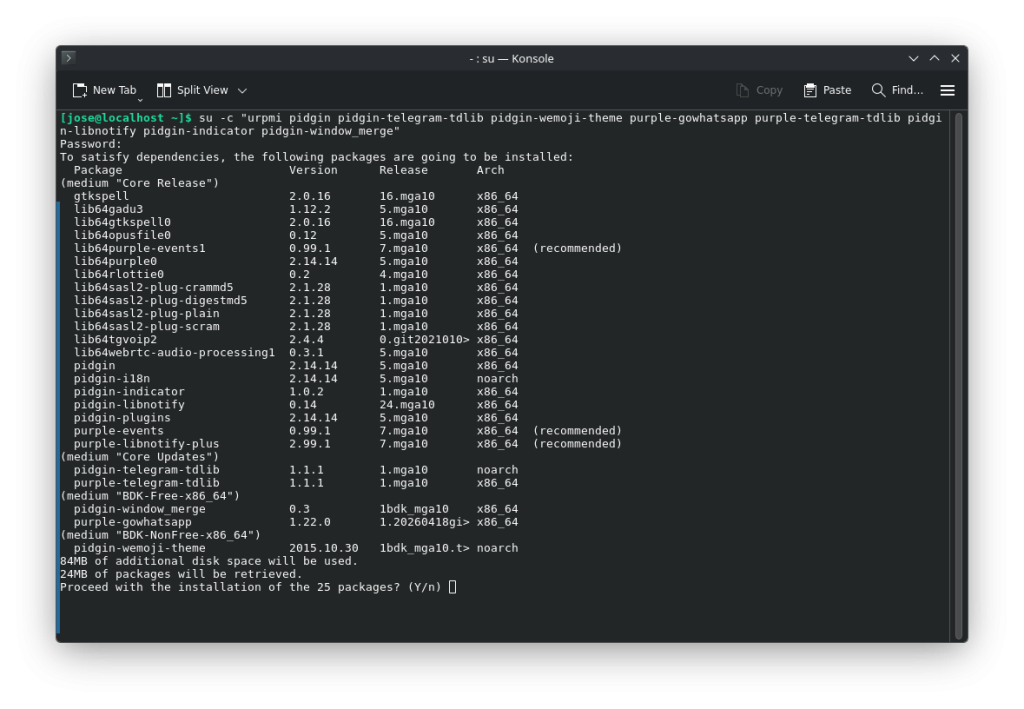
    • Terminal: It is recommended to have the Blogdrake community repositories enabled for some packages. Enter the terminal as root and write: “urpmi pidgin pidgin-telegram-tdlib purple-gowhatsapp purple-telegram-tdlib pidgin-libnotify pidgin-indicator pidgin-window_merge pidgin-wemoji-theme”. With this command, pidgin and plugins for telegram, whatsapp and a complete emoji theme will be installed.


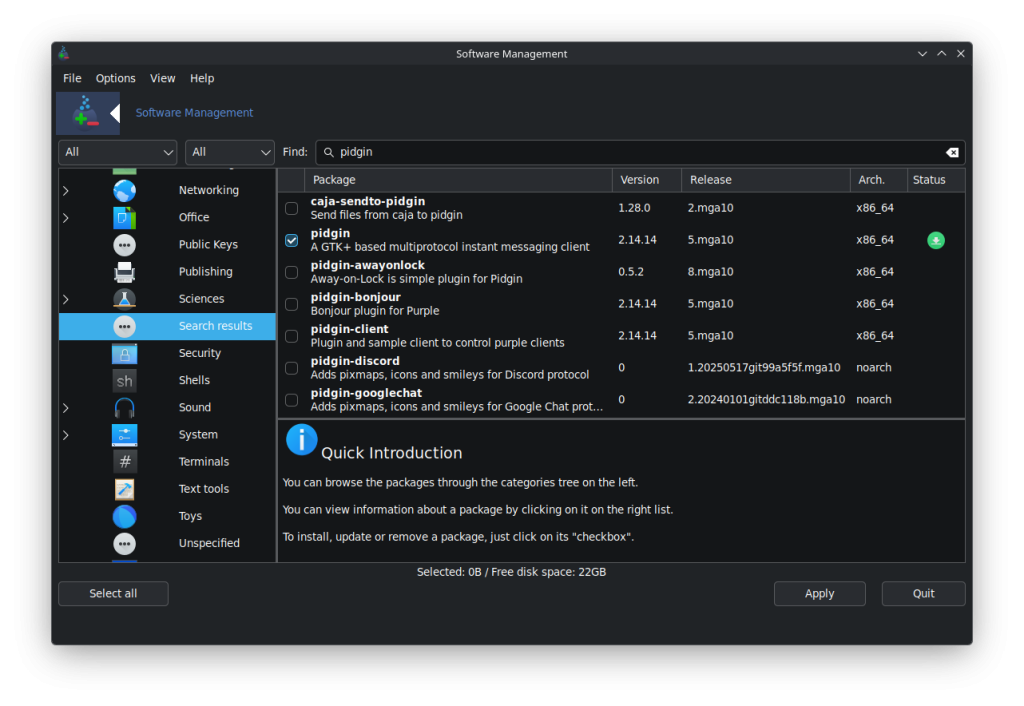
    • Software Manager: Go to the Start menu and search for “Install or Remove Apps.” Once there, make sure both search filters are set to “All.” Next, we install the following packages: “pidgin pidgin-telegram-tdlib” “pidgin-wemoji-theme” “purple-gowhatsapp” “purple-telegram-tdlib” “pidgin-libnotify” “pidgin-indicator” “pidgin-window_merge”. As before, this will install plugins and the emoji theme.


Configure Pidgin to manage these two messages It’s relatively simple. As soon as you launch the application, a greeting and a window to start configuring the accounts will appear. Note that Pidgin supports many other communication protocols, such as Gadu-Gadu, Google Talk, IRC, XMPP, etc. For more information about them and how to install them, you can visit the “official Pidgin website. Let’s get started:

Telegram

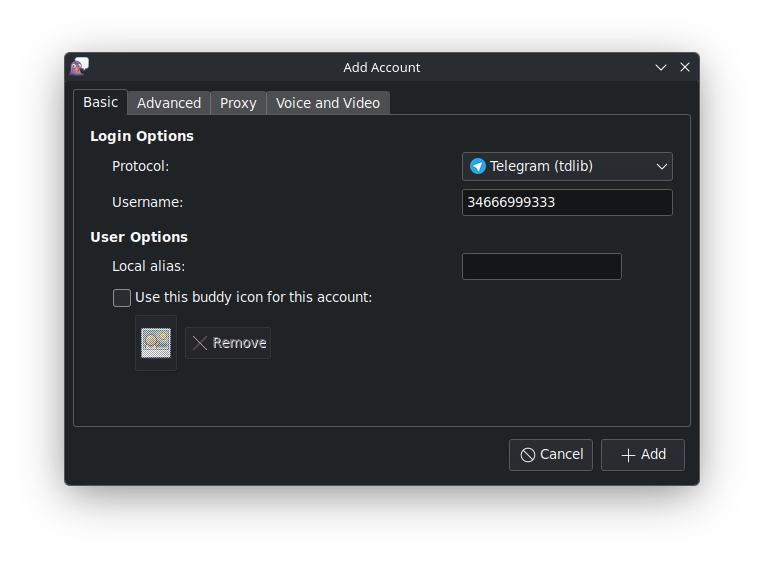
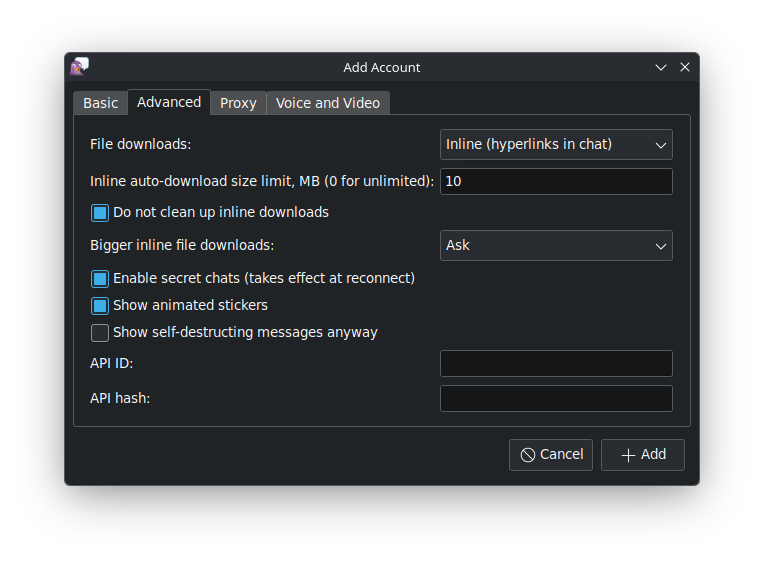
In the accounts section, tap “Add.” In the next window, choose the “Telegram (tdlib)” protocol. Then, in the “Username” field, enter your phone number with the international code. For example, in my case, from Spain, it would be 34669543111, and tap “Accept” or “Add.” After this, a pop-up window will appear to add the code that Telegram sends to the mobile application. The Telegram account is now set up.
Whatsapp

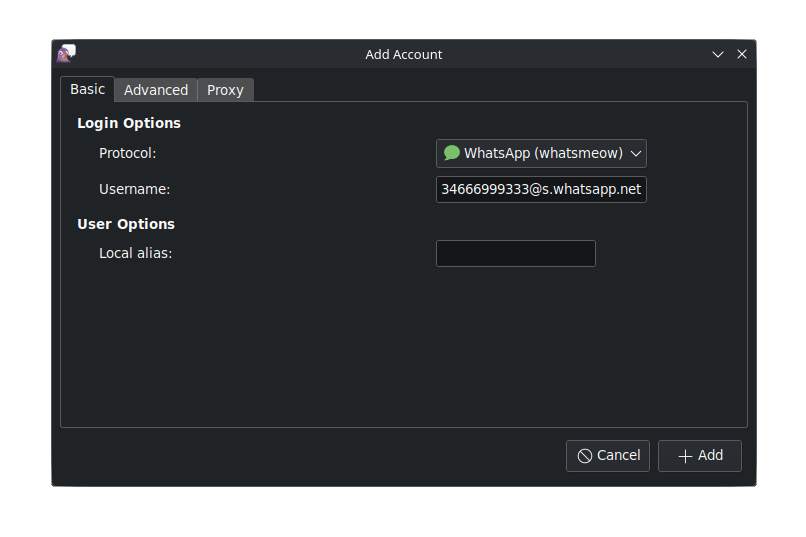
In the accounts section, tap “Add”, and in the next window choose the “Whatsapp” protocol. Next, in the “Username” field, enter your phone number in international code, and now comes the important part followed by “@s.whatsapp.net”, for example, 34669543111@s.whatsapp.net. After this, a window will appear with a QR code to add the session from the mobile app.


Extra configuration for GTK themes, dark mode in Pidgin

For desktop environments other than Plasma, if Pidgin doesn’t pick up the default dark theme from the desktop environment preferences, you can try closing Pidgin after configuring the accounts and installing the packages:

    • “gtk-chtheme”. This is an application that will allow you to change the themes of GTK applications.

    • “gtk2-theme-engines”. Installs various GTK themes for GTK applications.

    • Open the GTK themes application and select the “Nodoka-Midnight” theme.

This seems to be the theme that best integrates dark mode into Pidgin.

    • Go to your home folder and find the file “.gtkrc-2.0” (you will need to show hidden files to find it). Remember to remove the period from the name once copied so that the theme applies correctly to Pidgin, leaving the name as “gtkrc-2.0”.

    • Copy that file to the “.purple” folder, which is where everything related to Pidgin is located.

    • Restart, and then open Pidgin normally. It should now display the dark theme.

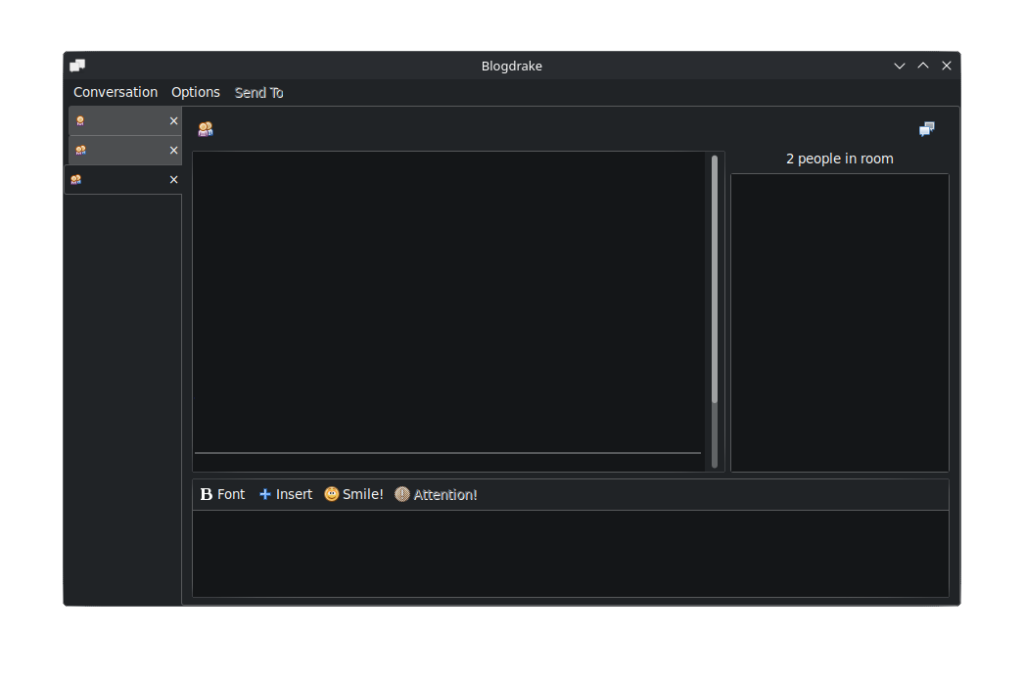
    • Some screenshots:

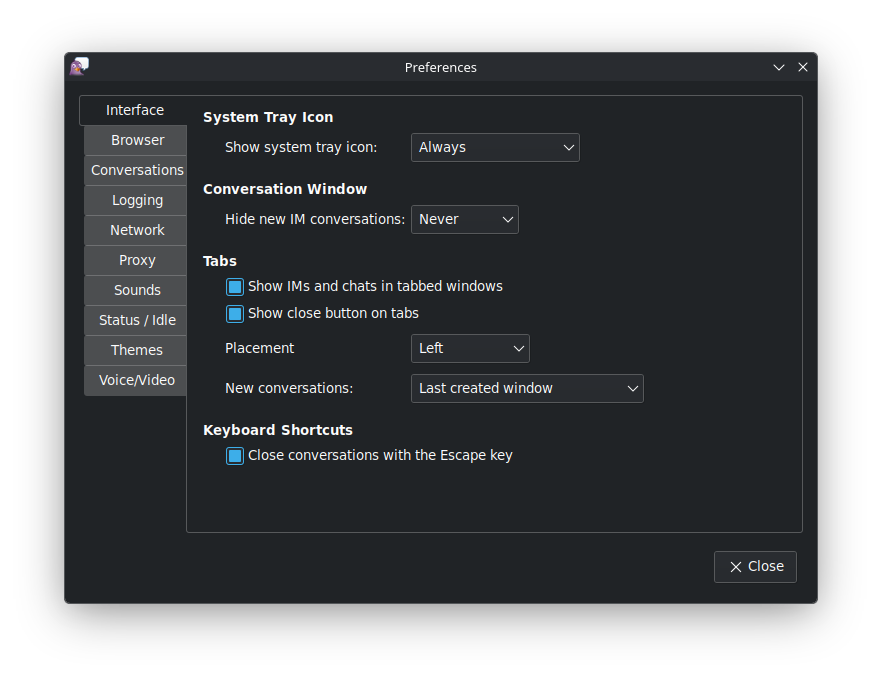
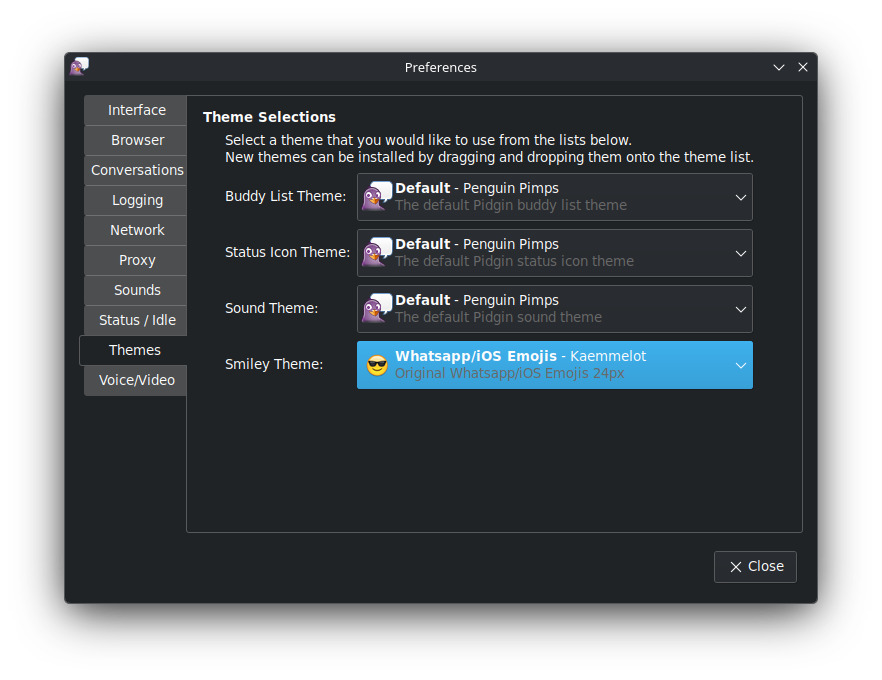
We previously installed an expanded emoji theme. To activate it, go to Preferences, then to “Themes > Emoji Theme,” and select the theme. It will appear as WhatsApp/iOS Emojis.


Extra access, shortcuts, and other features.

    • From the main window, you can search for a chat using “Ctrl+f”. If, for example, we have the same name on two different accounts (WhatsApp and Telegram), Pidgin will tell us which account we want the chat from.

      From a chat window, use “Ctrl+F” to search within the current chat.

      From the chats window, use “Ctrl+M” to open a new chat or search for one to open a conversation.

      From the “Conversation > View History” menu, you can view the history of the current chat (remember to enable the “History” plugin in the plugins section first). –>

    • From the main “Friends List” window, press “Ctrl-p” to open preferences.

Add-ons

    • History: Shows previous chat conversations. Enter the last conversation before starting the new one.

    • Libnotify Popus (not to be confused with Libnotify+): Displays notifications using libnotify

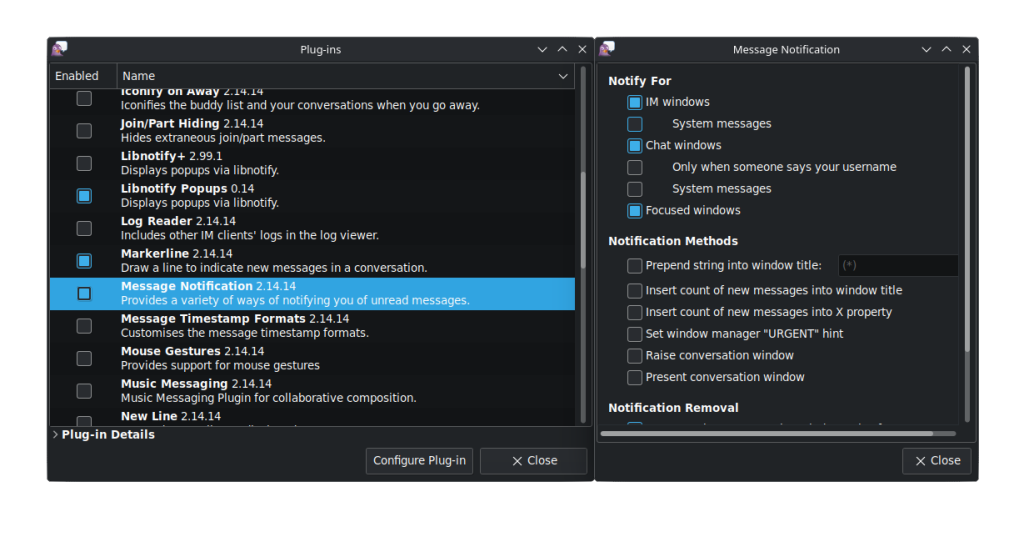
    • Message notification: Allows notification of unread messages.

    • New line: Adds a horizontal line to separate old and new conversations.

    • Window-merge: This plugin allows you to merge the “friends” and “chats” windows.

You can configure these plugins from the “Configure Plugin” option just below the window.


We hope you found this tutorial interesting. It shows you how to configure and use an application that, while not very well-known, is a gem for managing messaging from your PC with minimal resources. Best of all, it’s available from the Mageia and BlogDrake!!!.

repositories.
Posted in Atelier, Collaboration, community, Mageia, users | Tagged , , , | Leave a comment

The power of 10

Written by Atelier Team, with the help of Packaging Team.

Mageia 10, our new release, is ready to empower you. Download it here now, or read on for more details.

  • The power of Mageia 10 is found in all you can do with it: use it as desktop or as server, use it for education, development, office work, art, music, gaming, science and much more.
  • The power of Mageia 10 lies in part in the broad range of choices you have between full-blown desktop environments and window managers.
  • The power of Mageia 10 rests, as well, on the best software to carry out a range of
    activities from creative to leisure, personal to professional.
  • The power of Mageia 10 comes from its ability to use the full capabilities of new (with e.g. rocm) and older hardware and its ability to even run on very old, 32-bit hardware. You don’t need to upgrade your computer’s hardware to benefit from it.
  • The power of Mageia 10 rests on its tradition of high packaging standards, based on policies, mentoring and QA testing.
  • The power of Mageia 10 is assured by the monitoring of security threats and their rapid resolution.


In the end, the power of Mageia 10, the secret to its true power, flows from you, its committed community of users and contributors, from developers to artists, from those donating money to those donating time, either directly or simply through bug reports. It is you, our community, that guides the shape and evolution of Mageia to assure it meets your real needs and ways of working.

Now it is time to have a peek inside…

Mageia 10 comes with newer versions of thousands of packages, newer versions that often mean new features on top of the usual bug fixes. You can find some highlights in the Release Notes. You can also find the available packages in the Mageia Applications Database, nicely sorted by group, and toggle between viewing all applications or graphical ones only. Click on an application to get more information and a screenshot.

To give an idea of the vast number of new features and enhancements in Mageia 10, we present some from the Graphical desktop group below:

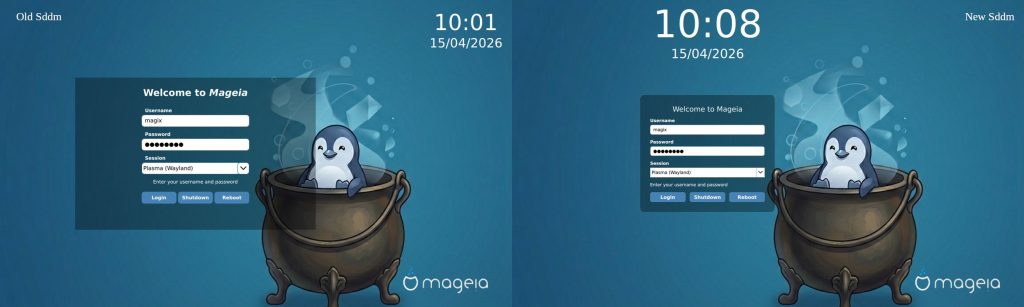
While Mageia 10 still proudly “flies” its traditional colours, you will find visual improvements here and there. For example, the new SDDM login screen on the right below gives a taste of the attention to detail in this release.


This new release carries on Mageia’s tradition of multiple installation options: the classical DVD, live images (new installation only), and netinstalls. Taking the live images as an example, here are some many enhancements Mageia 10 offers:


Updates to all the desktop environments that can be installed with Mageia (choose whichever you like, or install them all on the same computer!). Mageia offers a wide variety of popular and lightweight desktops, which you can install at any time via our software centre or via the terminal (if you’re a more advanced user). So, you can choose from Plasma KDE 6.5.5, GNOME 49.0, XFCE 4.21, LXDE, LXQT (now with a Wayland option), Enlightenment, IceWM, MATE, Fluxbox, Cinnamon, Sugar or the newer Wayland compositors like labwc, niri, sway, and hyprland. When installed alongside a DE, the window managers appear as alternative sessions in the login menu of your display manager – over 20 desktop environments and window managers available to install at the click of a button. More information can be found here.


Updates for the main office suites (LibreOffice 26.2.3.2 e.g.), web browsers (e.g., Firefox 140.11.0esr), multimedia tools, photo and video editing software, development tools (e.g., gcc 15.2.0, rust 1.95.0, python 3.13.13 or perl 5.42.0, git 2.52), server daemons (e.g., postfix 3.9.10, apache 2.4.67, docker 28.5.2, postgresql 18.4) and more all based on our LTS Linux Kernel 6.18.35.


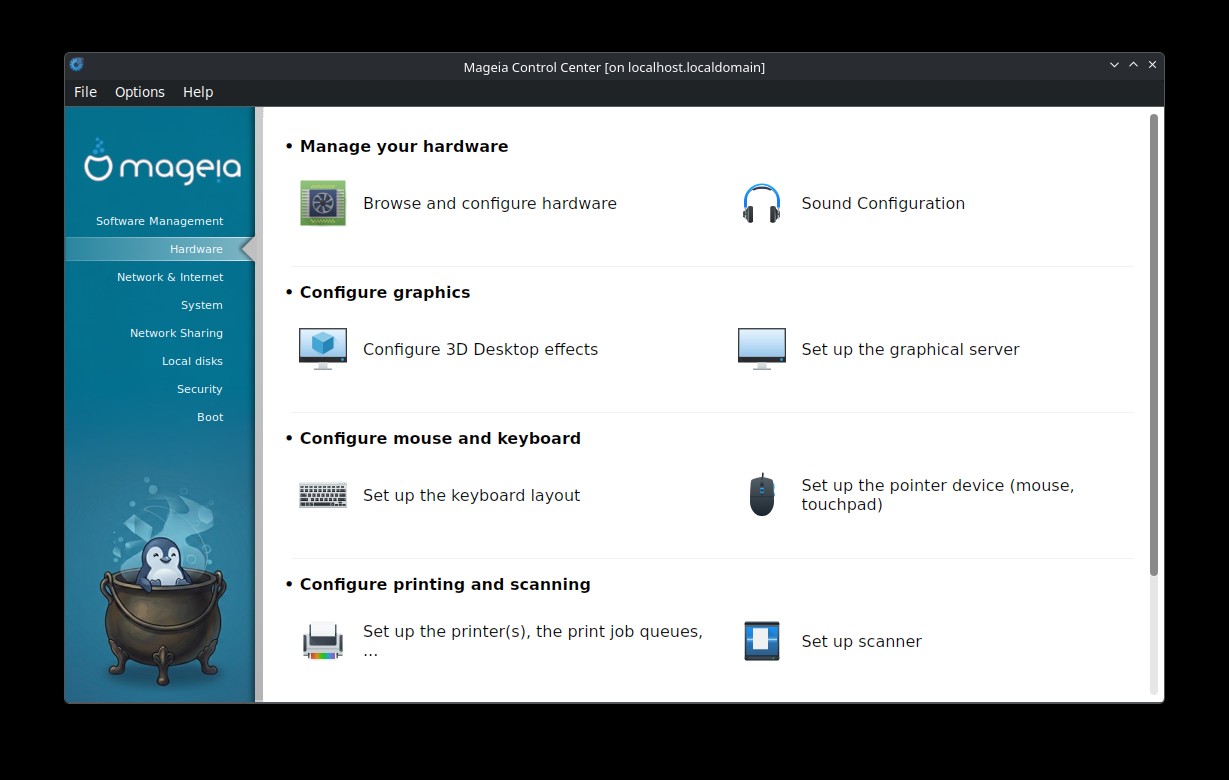
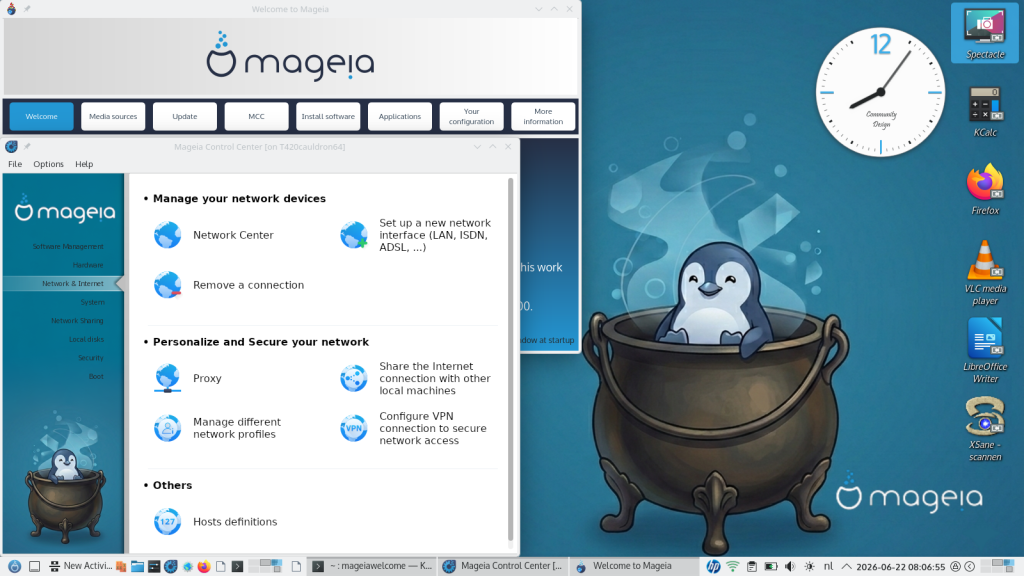
Updates and optimisations to our Mageia tools. Feel like a real expert with our Mageia Control Centre (MCC), urpmi, graphical updates and dnf support, to manage and configure many parts of the system, as well as support for the desktop environment of your choice! You can easily view all detected hardware in a graphical interface, check drivers, configure driver settings (if you’re an advanced user), install printers and much more!

Hardware tab in MCC


You also have access to a vast array of software thanks to our compatibility with DNF, Flatpak and AppImage. More information on the available applications can be found here on our wiki.

Not to forget the best part of Mageia: It is a community distribution, made by its users. This release would not have been possible without all our volunteers: the packagers, developers, sysadmins, QA testers, translators, artists, legal experts, the web, forums and documentation teams, and everyone else who helped bring this together. Come and participate in our global communities, forums, Matrix groups, Telegram or IRC toimprove your lovely distribution. You are part of us, take part.

If you need more information about installing Mageia or about Mageia’s Control Center (MCC), check our official documentation. You will also find instructions for upgrading from Mageia 9 in the Release Notes. There is, of course, even more documentation in our wiki. And in our Bugzilla where we track issues.

Explore the power of Mageia 10. Download it. Enjoy!

Mageia 9 will be supported until September 30, 2026.

Posted in Mageia, release | Tagged , | 11 Comments

Help… My browser cannot connect to Mageia’s website

Thanks to Maât and Danf for their help with this blog post.

As stated in Measures to protect our web services, the measures we had to take to reduce the impact of bots on our services can affect some features. A user reported getting a message saying that the part of mageia.org he wanted to visit was unreachable.

In his case, this was caused by an RSS reader that tracks changes in the wiki. It is possible that some users will run into this problem. If this annoying situation happens to you, let us first say that we are sorry… we need to protect our servers, otherwise our websites and services would not be available at all, and we will keep fine-tuning the system to minimize these side effects. If you are still blocked, we will make every effort to give you back access to our servers.

Contributors (Packagers, Quality Assurance team, Bugsquad – the Bug Hunting team) can now prevent the problem by logging into Bugzilla (if you are already logged in and want to make sure, log out and then log back in). You should then get full dynamic whitelisting for several days.

If you are already blocked, you can close the offending application/tool and wait 24 hours; the ban will then vanish automatically.

If you cannot wait 24 hours, or if you want to request a specific exception for a reason you consider legitimate, please visit ircs://irc.libera.chat:6697/#mageia-sysadm (in an IRC client) or #mageia-sysadm on Libera.Chat (in a web browser), and describe your problem with all the relevant details.

You might not get a reply right away — we are all volunteers with jobs and/or other time-consuming obligations. If you cannot stay long enough on IRC, please tell us how you can be contacted back before leaving.

You can also send a mail to :

Posted in sysadmin | Tagged | 2 Comments

Measures to protect our web services.

Like many services in the software world, our services are subject to disruptive automated requests that overload our servers. You may have noticed this in the form of significant loading delays or even services becoming unavailable.

We have therefore implemented a security system over the past few days that allows us to reject requests we deem inappropriate. This system specifically requires the execution of a JavaScript program, which thwarts a significant number of bots. You may see the following screen appear briefly.

The infrastructure we’ve put in place allows us to restore a very high level of service availability. It will also enable us to make adjustments easily.

However, if you notice that certain features are affected by these measures, please let us know, as this will allow us to make more precise adjustments.

Posted in sysadmin | Tagged | 4 Comments

Mageia 10 RC1

You may have noticed that Mageia 10 RC1 was released a few days ago. It contains the new Mageia 10 artwork, like the wallpaper that was published here, but also really nice screensavers.

Apart from that, it contains hundreds of newer packages with security and other fixes that have been added since 10beta1. Some of them are listed below:

  • firefox-140.10.1
  • gtk+3.0-3.24.52
  • kernel-6.18.26
  • libreoffice-26.2.3.2
  • mesa-26.0.6
  • nss-3.123.1
  • postgresql18-18.3
  • rootcerts-20260412.00
  • samba-4.23.7
  • systemd-258.7
  • thunderbird-140.10.0
  • urpmi-8.136

The full lists of included packages can be found in the .idx files for the classical installation media or the .lst files for the live iso images.

However, our packagers have already released more security and other bug fixes after the 10RC1 ISOs were built. Just a few of them are mentioned below:

  • kernel-6.18.30-2.mga10
  • firefox-140.10.2-1.mga10
  • gtk4.0-4.20.4-1.mga10
  • glib2.0-2.86.5-1.mga10
  • java-*-openjdk
  • mariadb-12.2.2-2.mga10
  • mutter-49.5-1.mga10
  • python3-3.13.13-7.mga10
  • sddm-0.21.0-17.mga10
  • thunderbird-140.10.2-1.mga10

Please test one or more ISOs and report any issues in our Bugzilla. Note that we are being hammered by AI bots, please be patient if connecting to Bugzilla is difficult.

We did not find shocking problems while testings these ISOs before they were released, we really need you to test them for issues we missed. Some of the less severe issues you might encounter, are listed in the Mageia 10 Errata.

Happy testing!

Posted in RC, test | Tagged , | Comments Off on Mageia 10 RC1