



We started a series of blog posts. Ideas, applications, processes, customizations, contributions about our distribution that are relevant to our users, bringing the use of Mageia closer to everyone. We certainly hope that these new publications are of interest to you, you can share them on social networks, your personal blog, website, news sites or any other place that serves to show the qualities of Mageia!
Prologue
Today we’re going to talk about this application which, although somewhat forgotten by many, is a great low-resource alternative for managing multiple messaging protocols simultaneously. In Mageia, it’s very well packaged with many plugins that you won’t find in other distributions and that complement Pidgin very well, allowing you to use it like modern messaging apps.
Pidgin is cross-platform and multi-protocol, which means that if you add what you need, you’ll have a multitude of messaging applications in one.
On the other hand, resource optimization is such that the impact on the system is truly minimal. Just look at some data from two of the most requested applications by the average user: WhatsApp and Telegram, for example.
-
- Opening Telegram will consume 300 to 400MB of your computer’s RAM.
-
- Opening WhatsApp will consume 700 to 900MB of your computer’s RAM—a truly outrageous amount for a messaging app… Of course, most of these versions are built on Electron, and their optimization is about as good as Mageia is for Windows…
Opening Pidgin with both accounts configured consumes 90 to 150 MB of your computer’s RAM, at most, so as you can see, in terms of performance and resource optimization, it’s highly recommended…
After this, Pidgin has its plugins. It’s highly recommended to leave the “History” plugin activated, which allows you to save conversations in the log. Note that it’s advisable not to delete conversations from the conversation window, which you can find in the “View History” option in each conversation’s menu.
Installation
Installation in Mageia is very simple, although some accounts may require the installation of a few extra packages. There are two ways to do it: through the software manager or via the terminal. Let’s get started:
-
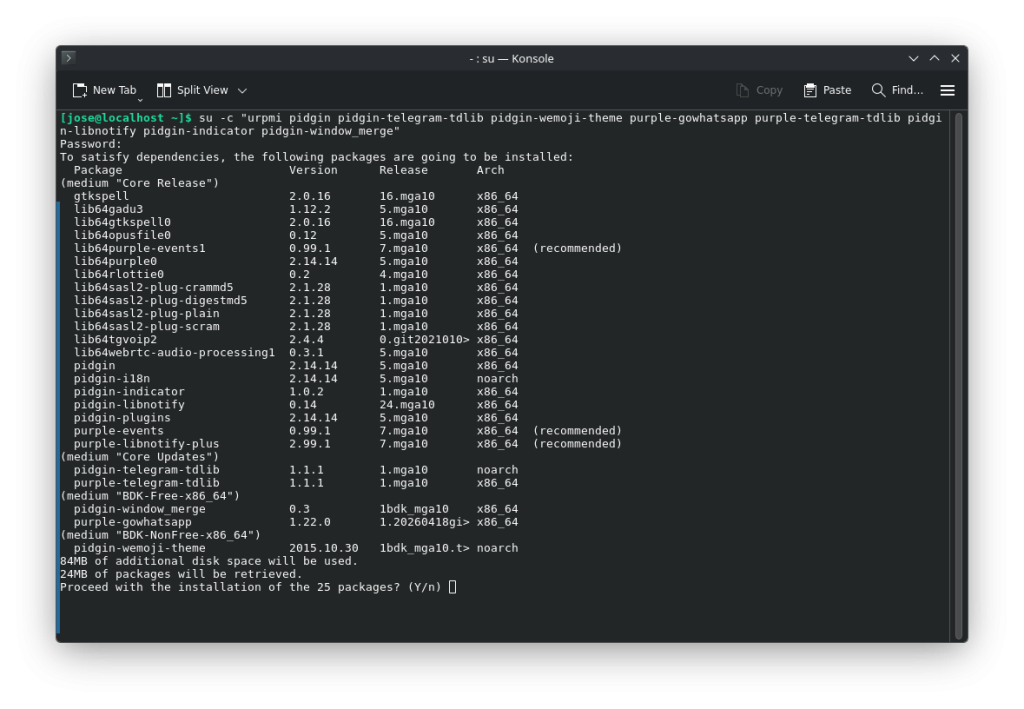
- Terminal: It is recommended to have the Blogdrake community repositories enabled for some packages. Enter the terminal as root and write: “urpmi pidgin pidgin-telegram-tdlib purple-gowhatsapp purple-telegram-tdlib pidgin-libnotify pidgin-indicator pidgin-window_merge pidgin-wemoji-theme”. With this command, pidgin and plugins for telegram, whatsapp and a complete emoji theme will be installed.
-
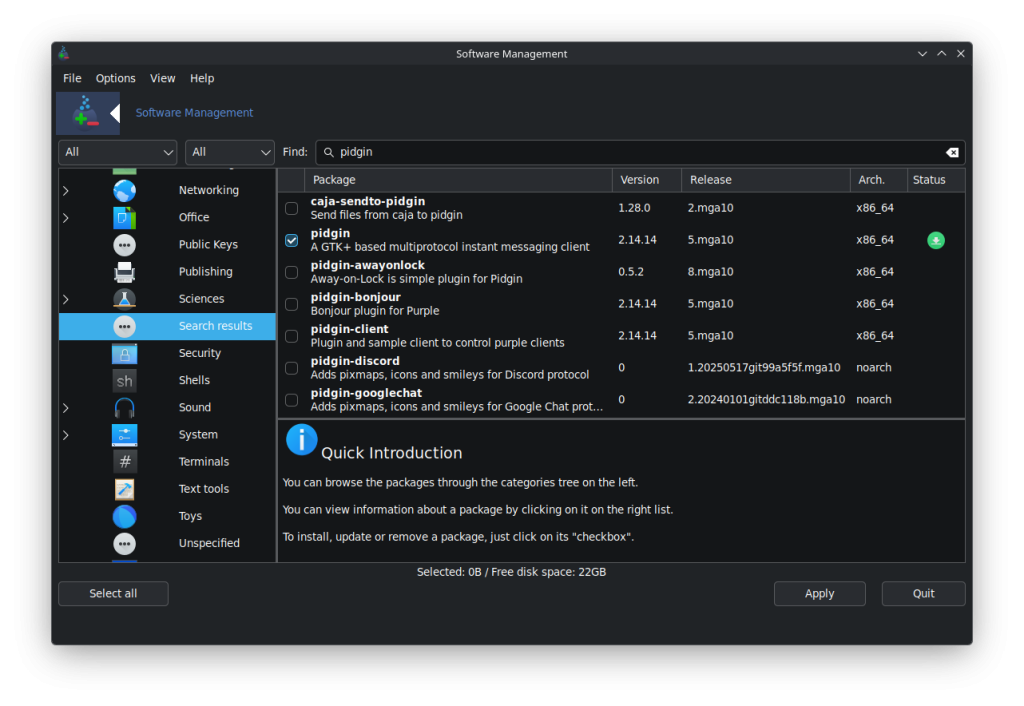
- Software Manager: Go to the Start menu and search for “Install or Remove Apps.” Once there, make sure both search filters are set to “All.” Next, we install the following packages: “pidgin pidgin-telegram-tdlib” “pidgin-wemoji-theme” “purple-gowhatsapp” “purple-telegram-tdlib” “pidgin-libnotify” “pidgin-indicator” “pidgin-window_merge”. As before, this will install plugins and the emoji theme.
Configure Pidgin to manage these two messages It’s relatively simple. As soon as you launch the application, a greeting and a window to start configuring the accounts will appear. Note that Pidgin supports many other communication protocols, such as Gadu-Gadu, Google Talk, IRC, XMPP, etc. For more information about them and how to install them, you can visit the “official Pidgin website. Let’s get started:
Telegram
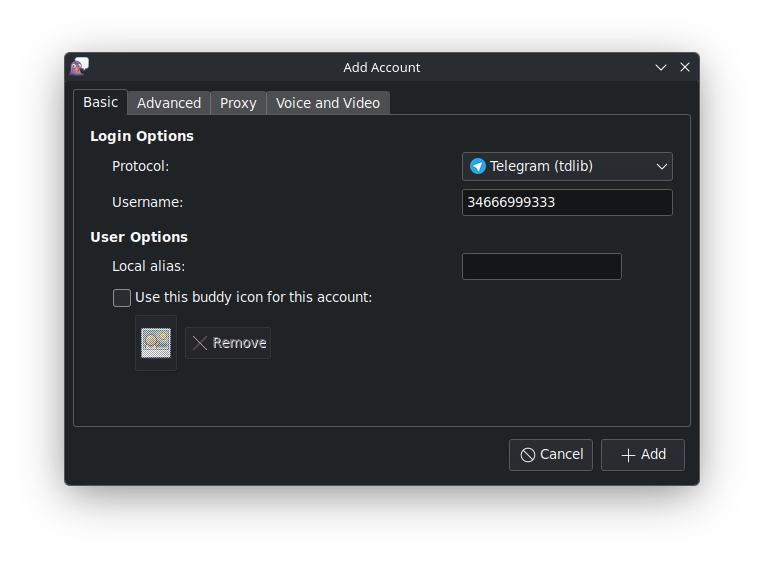
In the accounts section, tap “Add.” In the next window, choose the “Telegram (tdlib)” protocol. Then, in the “Username” field, enter your phone number with the international code. For example, in my case, from Spain, it would be 34669543111, and tap “Accept” or “Add.” After this, a pop-up window will appear to add the code that Telegram sends to the mobile application. The Telegram account is now set up.
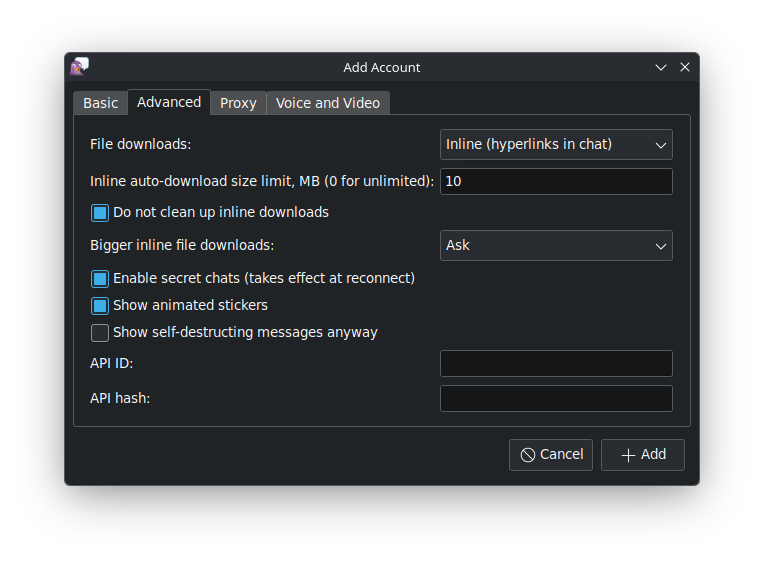
In the accounts section, tap “Add”, and in the next window choose the “Whatsapp” protocol. Next, in the “Username” field, enter your phone number in international code, and now comes the important part followed by “@s.whatsapp.net”, for example, 34669543111@s.whatsapp.net. After this, a window will appear with a QR code to add the session from the mobile app.
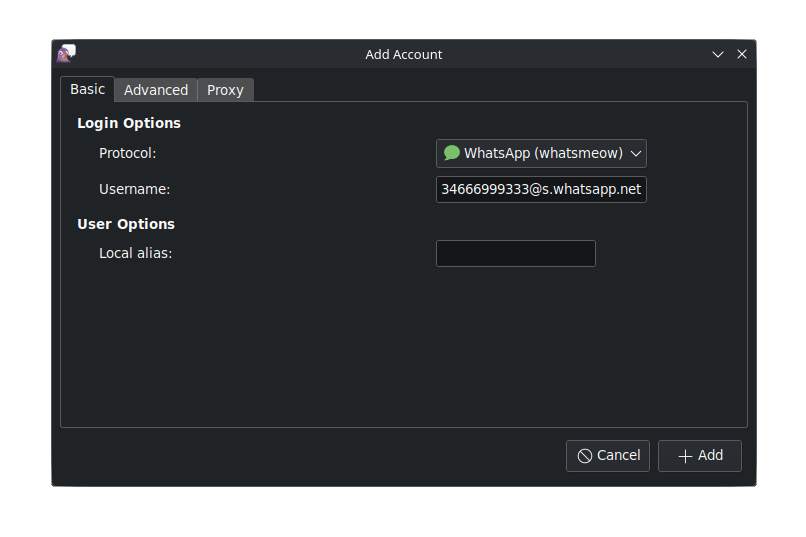
Extra configuration for GTK themes, dark mode in Pidgin
For desktop environments other than Plasma, if Pidgin doesn’t pick up the default dark theme from the desktop environment preferences, you can try closing Pidgin after configuring the accounts and installing the packages:
-
- “gtk-chtheme”. This is an application that will allow you to change the themes of GTK applications.
-
- “gtk2-theme-engines”. Installs various GTK themes for GTK applications.
-
- Open the GTK themes application and select the “Nodoka-Midnight” theme.
This seems to be the theme that best integrates dark mode into Pidgin.
-
- Go to your home folder and find the file “.gtkrc-2.0” (you will need to show hidden files to find it). Remember to remove the period from the name once copied so that the theme applies correctly to Pidgin, leaving the name as “gtkrc-2.0”.
-
- Copy that file to the “.purple” folder, which is where everything related to Pidgin is located.
-
- Restart, and then open Pidgin normally. It should now display the dark theme.
-
- Some screenshots:
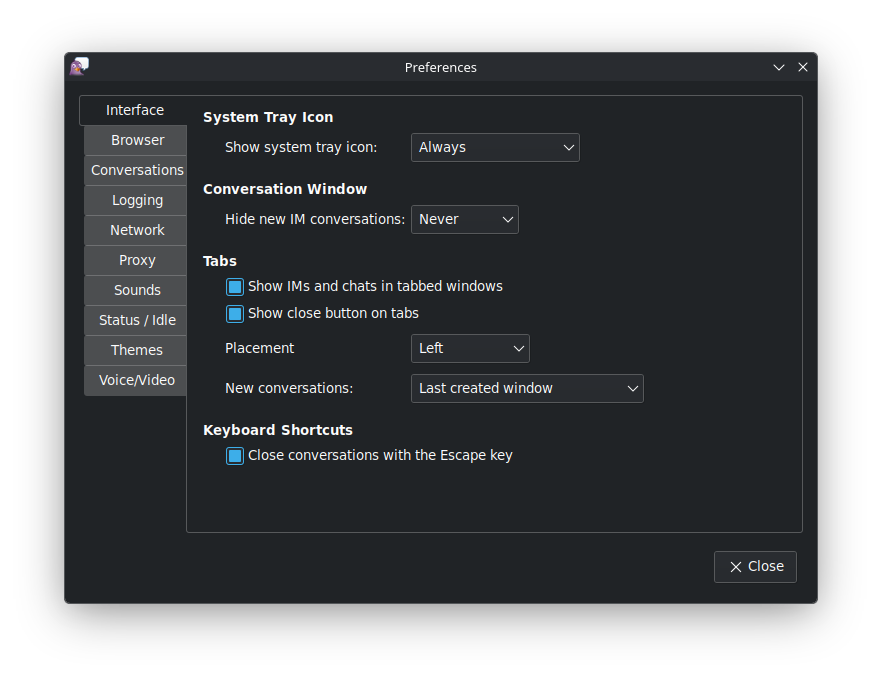
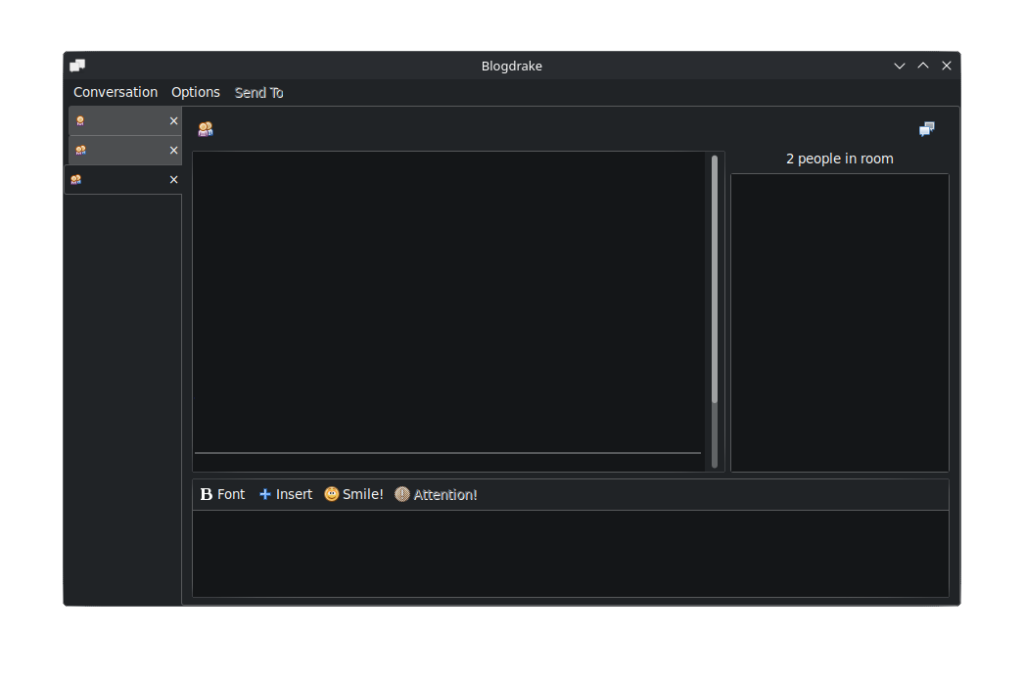
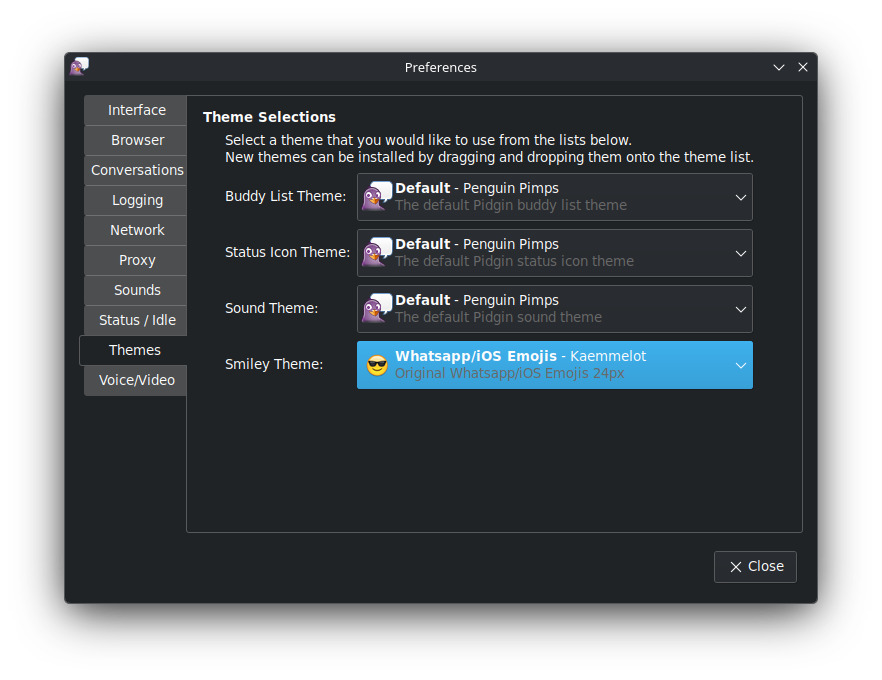
We previously installed an expanded emoji theme. To activate it, go to Preferences, then to “Themes > Emoji Theme,” and select the theme. It will appear as WhatsApp/iOS Emojis.
Extra access, shortcuts, and other features.
-
- From the main window, you can search for a chat using “Ctrl+f”. If, for example, we have the same name on two different accounts (WhatsApp and Telegram), Pidgin will tell us which account we want the chat from.
From a chat window, use “Ctrl+F” to search within the current chat.
From the chats window, use “Ctrl+M” to open a new chat or search for one to open a conversation.
From the “Conversation > View History” menu, you can view the history of the current chat (remember to enable the “History” plugin in the plugins section first). –>
- From the main “Friends List” window, press “Ctrl-p” to open preferences.
- From the main window, you can search for a chat using “Ctrl+f”. If, for example, we have the same name on two different accounts (WhatsApp and Telegram), Pidgin will tell us which account we want the chat from.
Add-ons
-
- History: Shows previous chat conversations. Enter the last conversation before starting the new one.
-
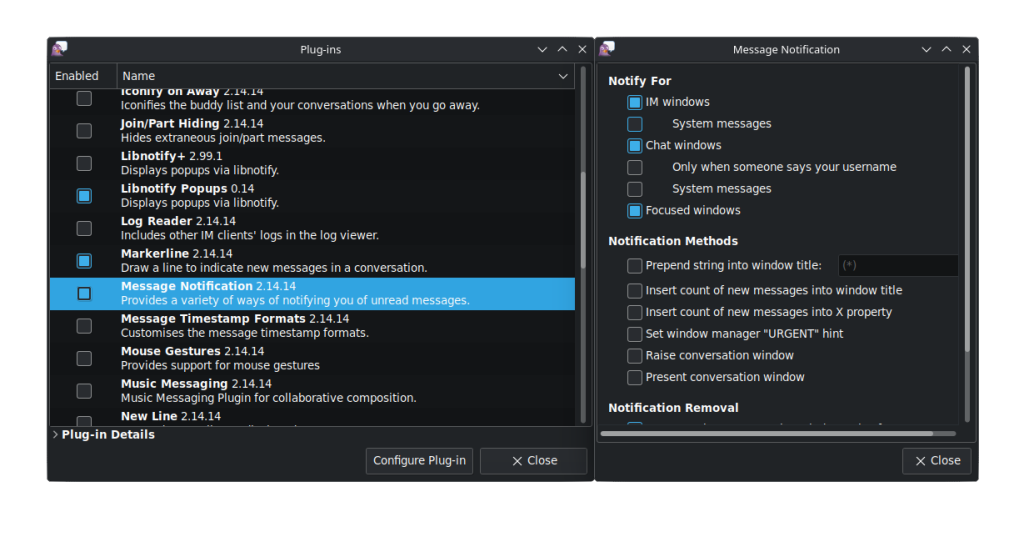
- Libnotify Popus (not to be confused with Libnotify+): Displays notifications using libnotify
-
- Message notification: Allows notification of unread messages.
-
- New line: Adds a horizontal line to separate old and new conversations.
-
- Window-merge: This plugin allows you to merge the “friends” and “chats” windows.
You can configure these plugins from the “Configure Plugin” option just below the window.
We hope you found this tutorial interesting. It shows you how to configure and use an application that, while not very well-known, is a gem for managing messaging from your PC with minimal resources. Best of all, it’s available from the Mageia and BlogDrake!!!.
repositories.

Thank you very much, I didn’t dig very deeply in all pidgin’s plugins and configurations, so I primer it’s always welcome
Pingback: Poções no Mageia. 01 – Pidgin e seus acessórios | Mageia Blog (Português)